Last updated: October 1, 2026 · Current version: v13.0.5 (released 17 September 2026)
You installed the mod, opened the game, and now you’re tapping around the screen the way everyone does the first time — looking for the menu from the screenshots. Nothing opens. Here’s the part most guides skip: the mod menu doesn’t live inside the game’s own menus. It’s a small floating window that sits on top of the game, and your phone gets a vote on whether that window is allowed to appear at all.
What the mod menu actually is
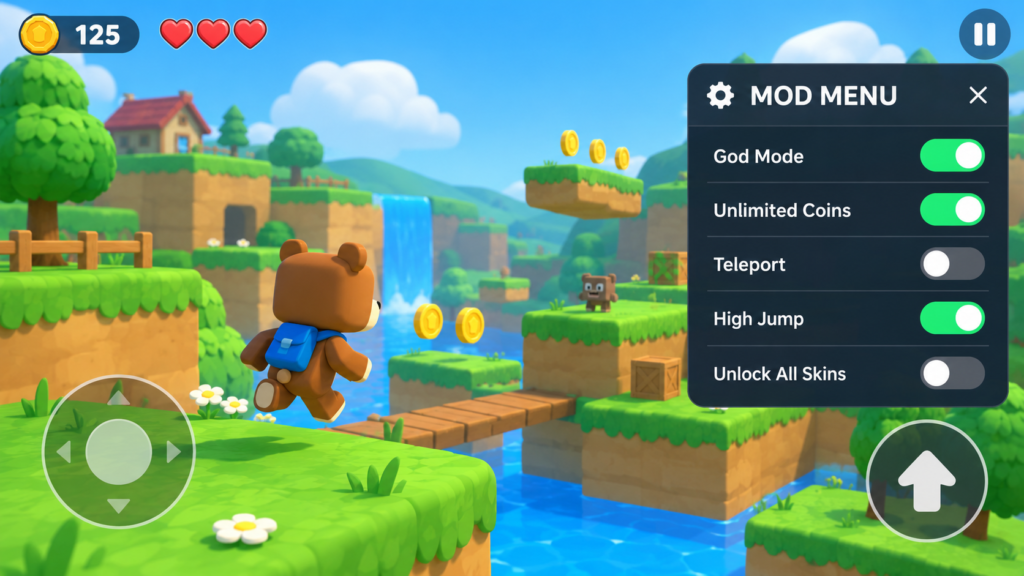
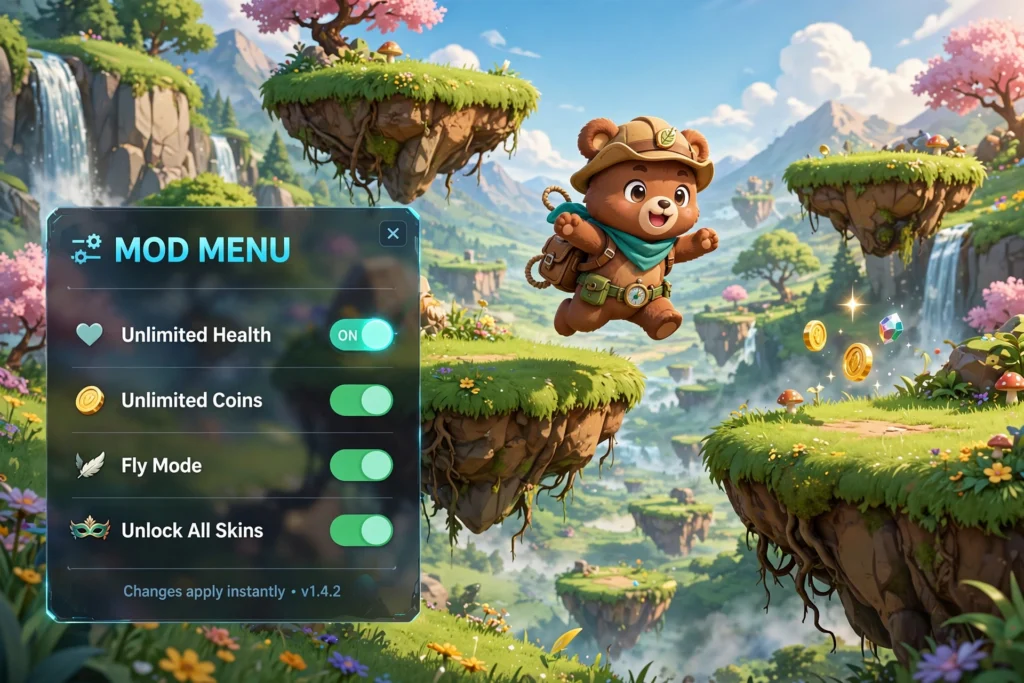
The official game — made by Earthkwak Games — has no cheat menu. The mod menu is added by whoever built the modded APK: a floating panel of toggle switches layered over the game. Tap a switch, the cheat turns on. Tap it again, it’s off. Simple as a light switch, which is exactly the point.
Two things worth knowing before anything else. First, every mod build designs its own menu, so tab names and toggle labels differ slightly from one build to another. The names in this guide are the common ones you’ll see across most builds; yours might phrase them differently, but the toggles underneath do the same jobs. Second, the floating panel needs Android’s “display over other apps” permission. If the phone hasn’t granted it, there’s no icon, no panel, no menu — and the fix takes about thirty seconds in Settings.
One more thing: the menu and the game version are a pair. A menu built for v13.0.4 can misbehave on v13.0.5 — toggles that do nothing, a panel that won’t open. Whenever the game updates, the mod needs to catch up. Right now the current version is v13.0.5, released 17 September 2026, so that’s the build your mod should target.
How to open it
- Launch the modded APK — not the Play Store version. If both are installed side by side, opening the wrong one is the most common reason the menu “doesn’t exist.” Check the app icon and name before you tap.
- Look for a small floating icon, usually near a screen corner. It’s often the mod’s logo, a gear, or a wrench symbol, and it stays visible while you play — over menus, cutscenes, and gameplay alike.
- Tap the icon once. The panel slides open over the game. The game itself usually keeps running underneath, so don’t open it mid-jump.
- Tap the icon again — or the panel’s X — to close it. Closing the panel doesn’t turn off your toggles; they stay active until you switch them off.
No icon anywhere on screen? That’s a permission or install problem, not a broken mod. Don’t reinstall three times in frustration — the six actual fixes are all in one place: Super Bear Adventure Mod Menu Not Showing? 6 Common Fixes.
The tabs, explained
Most builds organize the panel into tabs. Here’s what each one usually holds, with the toggles you’ll actually use.
Player — everything about Baaren himself. Unlimited health or god mode, unlimited coins, sometimes unlimited oxygen for the underwater stretches. This is the tab most people open first, and honestly, the tab most people never leave. Turn on god mode before a boss you’re stuck on, turn it off when you want the game to feel like a game again.
Enemy — the other side of the fight. Enemies don’t attack, one-hit kills, freeze enemies where they stand. Useful when a boss is gatekeeping your progress and your patience ran out two attempts ago. Pair it with the Player tab and the whole combat layer of the game basically politely steps aside.
Fly Mode — free flight. An Enable Fly switch plus X, Y, and Z speed sliders for controlling how fast you move in each direction. It’s the most fun tab and the easiest one to get yourself stuck with, so it has its own full walkthrough: Super Bear Adventure Fly Mode: Full Guide (2026).
Store / Profile — unlocks shop items, skins, and premium cosmetics without paying or grinding for them. If you only downloaded the mod for the looks, this tab is the whole point. Everything it unlocks, explained: Super Bear Adventure All Skins Unlocked — Free Guide (2026).
Game / Others — the miscellaneous drawer. High jump, no clip, and whatever one-off toggles the build author added. Names vary the most here because every build author has their own favorites, so read each toggle’s label before flipping it.
Which toggles are safe, and which ones are risky
No honest guide can promise a toggle is “safe” — anyone who does is selling you something. What you can do is think in terms of a risk ladder, and it’s a short one.
Lowest risk: toggles that change only your own solo game — health, coins, unlocked skins. Nobody else’s game is touched, nothing leaves your phone.
Higher risk: anything that reaches into multiplayer. The game has had online multiplayer for up to 4 players since update 12.0.0, cross-platform across Android, iOS, and Nintendo Switch. Cheats around real players are the fastest route to reports and bans, because now your fun costs someone else theirs.
In between: physics and movement cheats in solo play — fly mode, no clip, high jump. They won’t get you banned, but they can corrupt a save or wedge you inside level geometry. The 13.0.5 update actually fixed several wall-clipping bugs, which tells you the developers are actively patching the exact holes these toggles climb through.
Three habits keep you out of trouble. Enable one toggle at a time and test it before adding another — when something breaks, you’ll know exactly which switch did it. If a toggle does nothing at all, suspect a version mismatch first; a menu built for an older game version often fails silently on the current v13.0.5. And keep the modded build away from multiplayer entirely. That’s the one rule with no exceptions worth making.
Your first 10 minutes with the menu
Open the game, tap the floating icon, and start in the Player tab: turn on unlimited coins. Close the panel and play for a few minutes — buy something from a shop, notice the number doesn’t drop. That’s your confirmation that the menu is actually hooked into the game and not just decorating the screen.
Next, try the Store tab and unlock a skin you’ve been eyeing. Then, if you’re curious, open the Fly tab, enable it with the sliders at their lowest values, and lift off gently over Bear Village — wide open space, nothing to get stuck inside. Ten minutes, three toggles, and you’ll understand the whole panel better than any screenshot gallery could teach you.
Mod-menu builds vs unlock-only builds
Not every modded APK has a menu. Some builds skip it entirely: everything is simply unlocked from the start. No floating icon, no toggles, nothing to configure — install and play.
So which should you pick? The menu build, if you like control: turn cheats on and off per session, mix and match, keep the game challenging except exactly where you don’t want it to be. The unlock-only build, if you just want every skin and item without fiddling with a panel. Neither is objectively better; they’re different answers to “how much do you want to tinker?”
Quick-start checklist for v13.0.5
- You’re on v13.0.5 (17 September 2026), and the mod build targets the same version. Mismatched versions are the number one cause of dead toggles.
- “Display over other apps” is granted for the game in Settings.
- Launch, tap the floating icon, enable one toggle, and test it somewhere safe — Bear Village is perfect — before taking it into a real level.
FAQ
Is the mod menu part of the official game?
No. Earthkwak Games’ official release has no cheat menu. The mod menu is added by third-party modders to their own APK builds.
Why does my menu look different from the screenshots?
Because every mod build designs its own panel. Tab names and layouts vary between builds; the toggles underneath do the same jobs.
Can I use the mod menu in multiplayer?
You shouldn’t. Multiplayer is online with real players — up to 4 per party, across Android, iOS, and Nintendo Switch. Using cheats there risks reports and bans. Keep mods to solo play.
Does the mod menu work on iPhone?
No. Mod APKs are Android-only. The game itself needs Android 6.0 or higher.
The menu opens, but the toggles do nothing. Why?
Almost always a version mismatch: the mod was built for an older game version than the one you installed. Reinstall a mod build that targets v13.0.5.
Will the menu survive the next game update?
Probably not untouched. When the official game updates, mod builds need rebuilding against the new version. Expect a short wait after each update before a matching mod appears.